Finding codes faster across inboxes and devices
Accessible Ways to Find Verification Codes in Email
Cut the effort of email codes: WCAG 2.2 paste rights, keyboard-first Gmail search, zoom aimed at the digits, and authenticator options where sites offer them.
"Just check your email" is a chain of at least six distinct actions — leave the login window, reach the inbox, find one message in visual clutter, isolate six digits, carry them back, enter them before they expire. For screen-reader, low-vision, tremor, or switch-access users, several of those actions are individually expensive, and the code's countdown does not care. The workable strategy is not to try harder at each step but to shrink the chain: make the inbox findable by search instead of scanning, make the digits transferable by copy instead of reading-and-retyping, and know that WCAG 2.2 is on your side when a site blocks paste. This guide walks the chain step by step and gives a lower-effort substitute for each link.
The standard that backs you up
WCAG 2.2 added a success criterion aimed exactly at this pain: Accessible Authentication (Minimum), 3.3.8. Its core demand is that no step of logging in may require a cognitive function test — such as transcribing a sequence of characters — unless the site provides an alternative or a mechanism to assist. Crucially, the W3C's understanding document counts "copy and paste" support as such a mechanism: letting you paste into the code field spares you from memorizing or retyping the string.
Two practical consequences:
- A site that blocks pasting into its verification field, offers no assist, and forces character-by-character transcription is working against this criterion. It is reasonable to report that through the site's accessibility feedback channel and cite 3.3.8. People who build login pages can test their own code field with the one-time code field checker.
- Until a site fixes it, your countermeasures are on the input side: some blockers only intercept keyboard paste, so try the browser's Edit menu or a right-click paste; split-box fields sometimes accept a full paste into the first box. If nothing works, enlarge the code first (below) so transcription at least happens at a readable size.
Shrink the chain, step by step
The table is the plan: each row is one link in the chain, its default cost, and the cheaper substitute.
| Step in the chain | Default effort | Reduced-effort alternative |
|---|---|---|
| Leave the login page | Window/app switch, easy to lose focus position | Open Gmail in a second window arranged beside the login, so neither loses state |
| Find the inbox surface | Navigating to Gmail each time | A pinned Gmail tab or a bookmarked search URL that opens pre-filtered |
| Find the message | Scanning a dense list visually or item by item with a screen reader | Press / to jump to Gmail search, type a short saved query, get a one-item result list |
| Read the digits | Squinting at small type inside promotional layout | Browser zoom or a screen magnifier aimed at the code line; open the message rather than reading the snippet |
| Move the digits | Memorize-and-retype across windows | Select once, copy, paste — never transcribe by eye |
| Enter before expiry | Race against a short timer | Do all setup first, request the code last, so the timer starts when you are ready |
The last row is the quiet one that changes outcomes. Fill in every other field, position both windows, and prepare the search — then click "send code." Requesting last means the expiry window opens when your hands and focus are already in position, not before.
A keyboard-first Gmail routine
With keyboard shortcuts enabled in Gmail's settings, the fetch becomes four keystrokes' worth of structure:
/moves focus to the search box from anywhere in Gmail — no pointer precision required.- Type a compact query such as
newer_than:1h (code OR verification); for a known sender,from:service newer_than:1hnarrows to one result. Enterruns it; the arrow keys orj/kwalk the short result list, andEnteroroopens the top message.- Select the code and copy. In many verification emails the code sits on its own line, so a double-click (or shift-arrow selection) grabs it cleanly.
Because a search result is typically one to three items, a screen reader announces the target almost immediately — the difference between querying and browsing is the difference between three list items and eighty. If composing queries is itself a burden, bookmark the search results URL once; reopening the bookmark reruns the query with zero typing. For choosing among several similar messages without opening each, the right-code-without-opening-every-email guide goes deeper.
Making the digits legible before you touch them
Low-vision-friendly reading of a code is mostly about refusing to read it in miniature:
- Browser zoom (
Ctrl/Cmdand+) enlarges the whole message and reflows text, which usually beats a magnifier for a one-line code because you keep context. - A system screen magnifier wins when the code is rendered inside a fixed-width layout that zoom distorts; park the magnifier on the code line only.
- Gmail's display density setting and a larger default font size make the message list itself less punishing every day, not just during logins.
- Copy the code even when you can read it. Visually confident transcription is where
0/Oand1/lswaps happen; the copy-paste error guide covers the hidden-space traps that follow.
Ask for a factor that skips the inbox entirely
The most accessible email-code workflow still loses to not needing the email. Where a service's security settings offer an authenticator app, that option generates the code on a device already in your hands — no window switch, no inbox scan, and in many authenticator apps the code comes with a copy button. OWASP's multifactor guidance ranks and compares factor types and treats accessibility as a real selection criterion: the strongest factor a person can reliably use beats a nominally stronger one they cannot. Check each important account's security page once; every account you migrate off email codes deletes this article's entire chain for that account.
Keep MFA on while you do it. The goal is a lower-effort second factor, never zero factors.
The timer is an accessibility issue — say so
Codes expire on schedules tuned to an average user flipping between two apps in seconds. NIST's digital identity guidelines let verifiers enforce short validity windows for one-time secrets, and nothing obligates a site to size that window for assistive navigation. When a code reliably dies before careful navigation completes, that is a mismatch between the site's assumptions and your access method — not a user failure. Report it alongside any paste-blocking, request the site's alternative flow if one exists, and in the meantime use the request-last ordering above so the whole window is yours.
Where the remaining effort goes to zero
Everything above shortens the chain; the links that remain — leaving the login window, running the search, carrying digits back — are still the expensive ones under a screen reader, a magnifier, or a tremor. They are also the links a tool can remove outright rather than merely discount.
MagicLess is a free Chrome extension that connects to your Gmail and surfaces an arriving verification code directly on the login page, as a prompt one click from the field. MagicLess removes the highest-effort steps, switching windows, scanning a crowded inbox, and re-typing digits, by placing the code one click from the field that needs it. That converts the six-link chain into a single click at the point of need; it is available on the Chrome Web Store.
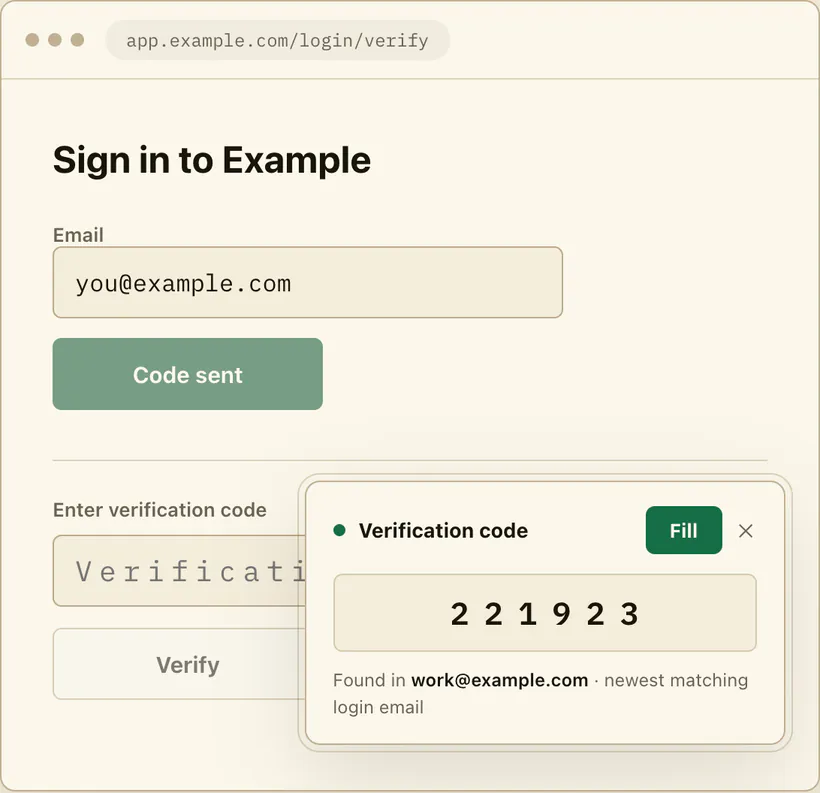
Plain limits: MagicLess cannot lengthen a site's expiry window or change a site that blocks paste, it does not submit the form for you — entering remains your action — and it works in Chrome with a Gmail account you choose to connect, not with other mailboxes or browsers.
FAQ
Is a site allowed to block pasting into a verification code field?
WCAG 2.2's Accessible Authentication (Minimum) criterion treats paste support as a mechanism that avoids a transcription burden, so blocking paste with no alternative works against the criterion. Report it via the site's accessibility contact and cite 3.3.8.
What is the fastest keyboard-only way to find a code in Gmail?
Press / to focus search, run newer_than:1h (code OR verification), and open the top result. A bookmark of that search's results page reruns it with no typing at all.
Codes keep expiring before I finish navigating — what actually helps?
Reorder the task: prepare windows, search, and every other form field first, and request the code as the final action. The validity window then coincides with the moment you are ready to act.
Should I switch accounts from email codes to an authenticator app?
Where offered, usually yes — the code is generated on-device with no inbox navigation, and OWASP's multifactor guidance supports choosing the factor you can use reliably. Keep a second factor enabled either way.
Claim ledger
| Claim | Source | Last checked | Confidence |
|---|---|---|---|
| WCAG 2.2 SC 3.3.8 requires that authentication steps not rely on a cognitive function test unless an alternative or assistance mechanism exists. | W3C Understanding 3.3.8 | 2026-09-13 | High |
| The W3C understanding document recognizes copy-and-paste support as a mechanism that avoids transcription burdens in authentication. | W3C Understanding 3.3.8 | 2026-09-13 | High |
Gmail search supports from:, newer_than:, and OR grouping to narrow a mailbox to a short result list. | Google Gmail search help | 2026-09-13 | High |
| NIST guidance permits verifiers to enforce short validity periods for one-time secrets; window length is verifier-controlled. | NIST SP 800-63B | 2026-09-13 | Medium |
| NIST SP 800-63B also says email SHALL NOT be used for out-of-band authentication (password-only access, interception, rerouting); codes that confirm an email address or recover an account are outside that rule. | NIST SP 800-63B | 2026-09-24 | High |
| OWASP multifactor guidance compares factor types and supports selecting factors with usability and accessibility in mind while keeping MFA enabled. | OWASP MFA cheat sheet | 2026-09-13 | High |
Sources
- W3C WAI - Understanding Accessible Authentication (Minimum), WCAG 2.2: https://www.w3.org/WAI/WCAG22/Understanding/accessible-authentication-minimum.html
- Google Gmail Help - Refine searches in Gmail: https://support.google.com/mail/answer/7190?hl=en
- NIST SP 800-63B - Digital Identity Guidelines: Authentication: https://pages.nist.gov/800-63-4/sp800-63b.html
- OWASP Cheat Sheet Series - Multifactor Authentication: https://cheatsheetseries.owasp.org/cheatsheets/Multifactor_Authentication_Cheat_Sheet.html