Finding codes faster across inboxes and devices
Five Tools Every Monday Morning: Fix the OTP Login Pileup
Batch your Monday logins: request every code up front, harvest them in one Gmail pass, then fix the cookie habits that expire your sessions each weekend.
The fix for the Monday pileup is to stop treating five logins as five separate errands. Open all five login pages in tabs, request every email code back to back without reading a single one, then make one pass through Gmail and enter them in the same order you requested them. That alone usually cuts a twenty-minute slog to under five, because you wait for all the emails at once instead of five separate times. The second half of the fix is prevention: most of those sessions died over the weekend for cookie reasons you can control, so a few minutes of Chrome profile and cookie hygiene means fewer tools ask for a code at all next Monday.
Why everything expires over the same weekend
Small teams without single sign-on feel this hardest: the CRM, the ad platform, the invoicing tool, the scheduler, and the analytics dashboard each run their own session clock, and several of those clocks are set to lifetimes that round to about a week. Shut the laptop Friday evening and by Monday the sessions have crossed their limits within hours of each other, so the failures arrive as a pileup rather than spread across the week.
Your own browser habits can make it worse. If Chrome is set to clear cookies when you close it, or if a cleanup extension wipes site data on a schedule, every tool forgets you regardless of what its session policy says. Google's cookie documentation is explicit that removing a site's cookies signs you out of that site, so an aggressive Friday cleanup is functionally a mass logout. Also check whether you bounce between Chrome profiles: each profile keeps its own cookie store, so a tool you authenticated in one profile is a stranger in the other. If sessions seem to vanish faster than a weekend can explain, work through what your browser forgets between logins before blaming the tools.
The batching order: request everything, read nothing
Serial logins are slow because of dead time. You request a code, stare at the inbox for forty seconds, type it, and repeat. Five tools means five separate waits. Batching overlaps all of them:
- Open five tabs, one per tool, before touching your inbox.
- In each tab, enter the email or username and click "send code." Do not switch to Gmail between requests.
- If a tool offers a "trust this device" or "remember this browser" checkbox on the code screen, note it now so you can tick it when you enter the code.
- Only after the fifth request, open Gmail once.
- Harvest all five codes in a single inbox pass (next section), then walk back through the tabs in request order.
Request order matters: enter codes oldest-request-first, so the code closest to its expiry window gets used before it dies. If one tool's email is slow, skip it, finish the other four, and come back rather than letting one laggard stall the whole pass.
One Gmail pass for five codes
With five verification emails landing within a couple of minutes, one search shows them all. These operator patterns come straight from Gmail's documented search syntax:
| Goal | Search to run | Note |
|---|---|---|
| Everything that just arrived | newer_than:1h ("verification code" OR "sign-in code" OR "one-time") | One result list containing all five emails |
| One slow sender | from:no-reply@toolname.com newer_than:1h | Use when a single code is missing from the batch |
| Codes buried in tabs | category:promotions newer_than:1h "code" | Some tools' auth emails get classified as promotional |
| Yesterday's stale codes excluded | "code" after:2026/9/13 | Keeps last week's messages out of the harvest |
Keep the result list open, open each message in turn, and copy codes into a scratch note or the worksheet below rather than round-tripping to a tab after every single email. For deeper operator tactics, see the Gmail OTP search operators that actually find new codes.
Make sessions survive until next Monday
Prevention beats batching. Three legitimate levers:
- Tick the trust checkbox. Wording varies ("remember this device for 30 days," "don't ask again on this browser"), but on a machine only you use, this is the single biggest reducer of weekly code requests.
- Check each tool's session settings. Some admin panels let you lengthen session duration for your workspace; many default to short lifetimes you can extend deliberately.
- Impose Chrome profile discipline. Pick one profile as your work identity and log into all five tools there, every time. Chrome's multi-profile documentation describes profiles as separate browsing setups precisely so that things like this stay separated, but that separation cuts both ways: log into the CRM from the wrong profile and you've started a second session that will also expire. One work profile, one cookie store, one set of trusted-device flags.
- Audit what clears your cookies. Chrome's own settings, third-party cleaners, and "clear on exit" options all erase the trusted-device cookies those checkboxes set.
When you should let sessions die
Long sessions are a convenience trade, and there are machines where the trade is wrong. NIST's digital identity guidelines treat session length and reauthentication as risk decisions, not conveniences, and the practical translation for a small team is simple: never tick "trust this device" on a shared laptop, a co-working-space machine, or any browser someone else can open. On those machines the Monday code ritual is doing its job. The same logic says a banking-adjacent tool deserves shorter sessions than your scheduler even on your own laptop. For the broader decision framework, run through the passwordless login security checklist once and set your trust checkboxes accordingly.
The Monday login batching worksheet
Copy this into a note and fill it during the run. After three Mondays you will know which tools are slow senders and which sessions you fixed permanently.
| Tool | Code requested at | Code found at | Logged in | Trust box ticked? | Still expiring weekly? |
|---|---|---|---|---|---|
| CRM | - [ ] | - [ ] | |||
| Ad platform | - [ ] | - [ ] | |||
| Invoicing | - [ ] | - [ ] | |||
| Scheduler | - [ ] | - [ ] | |||
| Analytics | - [ ] | - [ ] |
The last column is the payoff: any tool still demanding a code after you ticked its trust box and stabilized your cookies has a genuinely short session policy, and batching is your permanent answer for it.
Retire the Monday ritual instead of speeding it up
Notice what the batching workflow really is: you built a small assembly line whose only job is moving six-digit numbers from Gmail into login forms. The line is efficient, but you are still the conveyor belt, every single Monday, for every tool whose session policy you cannot change.
MagicLess is a free Chrome extension that removes the conveyor-belt step. Connect the Gmail account that receives your codes, and when a verification email lands, the code surfaces directly on the login page that asked for it; you click once and move to the next tab. Your batch of five requests becomes five clicks with no inbox pass at all. Five tools, five codes, every Monday: MagicLess turns that ritual into five clicks by putting each code on its login page as it arrives. It is free on the Chrome Web Store.
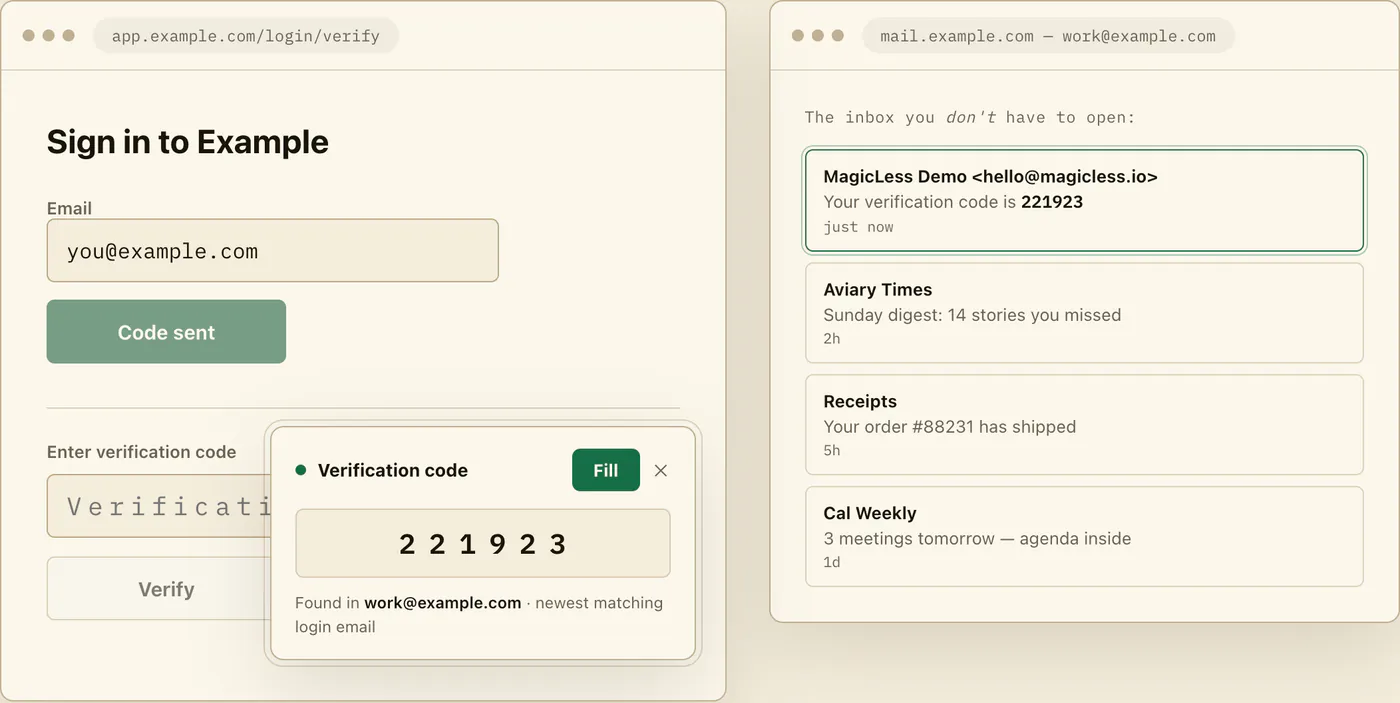
Be clear about what it does not do: it cannot stop the sessions from expiring or make slow verification emails arrive faster, so the hygiene section above still matters. It reads only Gmail accounts you explicitly connect, works in Chrome, and never submits a login form for you.
FAQ
Why do all my work tools log me out on the same day?
Because several of them use session lifetimes of around a week, and your Friday shutdown starts all their idle clocks together. Browser-side cookie clearing on exit produces the same effect instantly.
Is it safe to click "remember this device" on my work laptop?
On a laptop only you use and can lock, generally yes, and it is the main way to reduce weekly code prompts. Skip it on shared or public machines, where forcing a fresh code each session is the protection working as intended.
What order should I enter batched codes in?
Oldest request first. That code has burned the most of its validity window, so it is the one most at risk of expiring while you work through the stack.
One tool's code always arrives minutes after the others. What then?
Request that tool's code first in your batch so its delay overlaps the other logins, and search from: its sender directly instead of waiting in the inbox. If it is chronically slow, check whether its emails land in Promotions.
Claim ledger
| Claim | Source | Last checked | Confidence |
|---|---|---|---|
| Each Chrome profile keeps its own separate browsing data, so logins in one profile do not exist in another | Manage Chrome with multiple profiles | 2026-09-13 | High |
| Deleting a site's cookies in Chrome signs you out of that site | Delete, allow, and manage cookies in Chrome | 2026-09-13 | High |
Gmail supports search operators such as from:, newer_than:, after:, and category: for narrowing results | Refine searches in Gmail | 2026-09-13 | High |
| Session duration and reauthentication requirements are risk-based decisions under federal digital identity guidance | NIST SP 800-63B | 2026-09-13 | High |
Sources
- Google Chrome Help - Manage Chrome with multiple profiles: https://support.google.com/chrome/answer/2364824?hl=en
- Google Chrome Help - Delete, allow, and manage cookies in Chrome: https://support.google.com/chrome/answer/95647?hl=en
- Google Gmail Help - Refine searches in Gmail: https://support.google.com/mail/answer/7190?hl=en
- NIST SP 800-63B - Digital Identity Guidelines: Authentication: https://pages.nist.gov/800-63-4/sp800-63b.html