Finding codes faster across inboxes and devices
Verification Code While Screen Sharing? Hide Your Inbox
Pause or narrow the share before fetching the code: share one window or tab in Zoom or Meet, read the code off a second screen or phone, then resume.
If a login form demands an email code while a room full of people watches your screen, do this: pause or stop the share, fetch the code, then re-share. In Zoom, click Pause Share (or stop and re-share a single window); in Google Meet, stop presenting, and when you resume, present one tab or window instead of the entire screen. If pausing would break your flow, read the code from a surface the audience cannot see, your phone or a second monitor that is not being shared, and type it in. What you should never do is alt-tab into Gmail on a fully shared screen: subject lines alone can expose client names, offer letters, and personal threads in one glance.
Zoom: narrow the share before you need it
Zoom's screen-sharing documentation covers sharing a specific application window rather than the whole desktop, and that choice is the difference between a private inbox check and a public one. When you share only the browser window running your demo, switching to a different window, your mail client, another browser profile, is invisible to attendees; they keep seeing the shared window.
Concrete moves during a live Zoom session:
- If you shared your entire screen, use the Pause Share control in the meeting toolbar before opening any email surface. Attendees see a frozen frame, not your inbox.
- If you must keep motion on screen, stop sharing, reopen the share picker, and select just the demo window. Then fetch the code freely.
- Prefer window shares over full-screen shares as your default for any meeting where a login might happen. You cannot leak what you never shared.
One trap: sharing a browser window shares every tab you open inside that window. Fetching Gmail in a new tab of the shared window is exactly as public as a full-screen share.
Google Meet: present a tab, not your desktop
Meet's presenting options are documented as a choice between your entire screen, a window, or a single tab. The single-tab option is the safest one available for demos: attendees see that tab and nothing else, and Meet keeps them on it even while you work elsewhere. When the code request appears mid-demo:
- If you presented a tab: open Gmail in a different tab or window, grab the code, return. The audience never left your demo tab.
- If you presented a window: same protection at window granularity, but remember that new tabs inside that window are visible.
- If you presented your entire screen: click Stop presenting first, retrieve the code, then present again, choosing a tab this time.
Re-presenting takes about five seconds and reads as a natural pause. Showing your inbox for two seconds reads as the thing everyone remembers from the meeting.
The phone as a code reader, honestly priced
Your phone shows the verification email without touching the shared screen at all, which makes it the zero-setup fallback. Its costs are real, though: you read six digits off a small screen and retype them under audience pressure, which is precisely the condition where transposed digits happen; a mistyped attempt can force a second code request, doubling the awkward pause. If you use the phone route, say "one moment, entering a code" out loud, read the digits twice before typing, and type them in one go. To skip scrolling on the small screen, run a Gmail search like newer_than:1h "code" or from:no-reply@demotool.com newer_than:1h in the app; Gmail's documented operators work the same on mobile. A second monitor excluded from the share is the better version of this fallback, full-size Gmail, copy and paste instead of retyping, still invisible to the room.
Ten minutes before the meeting
The strongest play is making the mid-meeting code request impossible. Run this before going live:
- Log into every tool the demo touches, in the exact browser profile you will present from.
- Trigger any "verify this device" prompts now, while nobody is watching, and complete them.
- Decide your share type in advance: single tab for Meet, single window for Zoom.
- Silence the leak channels: enable Do Not Disturb at the OS level and mute Gmail desktop notifications.
- Close every window you would not project to a conference room.
- Keep your phone unlocked nearby as the emergency code reader.
Session timing is why the ten-minute figure works: services decide for themselves how long an authenticated session lasts, and identity guidance such as NIST SP 800-63B frames reauthentication as a timeout-driven event. A session opened ten minutes early has essentially never expired by the time the demo starts; a session from last Tuesday is a coin flip.
What leaks even when you shared only one window
Narrow shares stop inbox exposure, but three channels still bite presenters:
| Leak channel | What the room sees | Kill it by |
|---|---|---|
| OS notification banners | Sender name and message preview sliding over your demo | Do Not Disturb before the meeting, not after the first banner |
| Browser tab titles | Unread counts and subject fragments in the shared window's tab strip | Presenting a single tab, or a dedicated demo profile with no mail tabs |
| Autofill dropdowns | Other email addresses you have typed into login forms | Presenting from a clean browser profile |
| Meeting recordings | Everything above, replayable and shareable later | Treating a recorded meeting as stricter than a live one |
Recordings deserve their own line because they remove the "only five people saw it" comfort. A leaked notification in a recorded all-hands is a leak to everyone who ever opens the file.
The playbook table
Match your current sharing situation to the safest code-fetch route:
| Situation | Safest way to fetch the code | Second choice |
|---|---|---|
| Entire screen shared, Zoom | Pause Share, fetch in Gmail, resume | Phone as reader |
| Entire screen shared, Meet | Stop presenting, fetch, re-present a tab | Phone as reader |
| Single window shared | Open Gmail in a different window | Second monitor outside the share |
| Single tab shared (Meet) | Open Gmail in any other tab or window | Phone as reader |
| Recording running | Pause or stop the share regardless of share type | Wait and log in after the meeting |
| Co-presenter available | Hand them the screen while you fetch | Narrate a deliberate pause |
If a colleague needs to receive or relay a code for a shared account during the meeting, that is a different and riskier workflow; see the safe way to share a login code with your team and, for accounts several people sign into, the shared Gmail inbox verification-code workflow.
Fetch the code without ever presenting Gmail
Every route above shares one structure: the code lives in your inbox, the login lives on the shared screen, and you burn demo momentum ferrying a number between the two while managing what the room can see. The playbook makes the ferry trip safe; it cannot make the trip disappear.
MagicLess collapses the trip. It is a free Chrome extension that watches the Gmail account you connect and surfaces an arriving verification code directly on the login page requesting it, as a compact on-page prompt, so the only thing attendees see is the login form they were already looking at. With MagicLess the code appears as a small prompt on the login page, so you sign in mid-meeting without ever presenting your inbox to the room. Install it from the Chrome Web Store before your next demo, not during it.
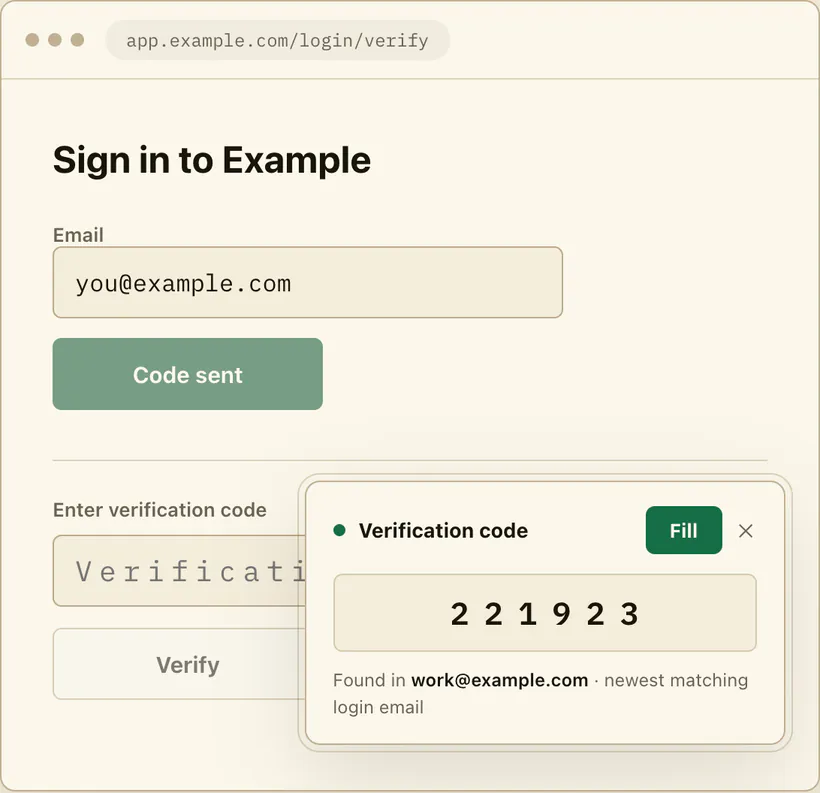
Honest limits: it works in Chrome with Gmail accounts you explicitly connect, and only surfaces codes, it does not silence your OS notifications, so keep Do Not Disturb in the prep list, and it will not submit the login form for you.
FAQ
Can meeting attendees see me switch tabs if I shared one Chrome tab in Meet?
No. When you present a single tab, attendees continue seeing that tab while you work in others. Presenting a window or full screen removes that protection.
Does pausing a Zoom share look unprofessional?
A narrated pause reads as controlled: "pausing the share for a second to grab a login code" is a normal sentence in a demo. An inbox flash reads far worse than a two-second freeze.
Should I just log in before the meeting instead?
Yes, that is the primary defense: authenticate into every demo tool about ten minutes before going live so device-verification prompts fire in private. This guide's mid-meeting playbook is for the sessions that expire anyway.
What about notifications, aren't those the bigger risk?
Often yes. A narrow share protects your inbox, but OS-level banners draw over whatever you share. Do Not Disturb before the meeting closes that channel; nothing during the meeting does.
Claim ledger
| Claim | Source | Last checked | Confidence |
|---|---|---|---|
| Zoom supports sharing a specific window or portion of the screen rather than the entire desktop | Sharing your screen or desktop on Zoom | 2026-09-13 | High |
| Google Meet lets presenters choose between entire screen, a window, or a single tab | Present during a video meeting | 2026-09-13 | High |
| Gmail search operators can narrow a code hunt to the expected sender and time window | Refine searches in Gmail | 2026-09-13 | High |
| Session length and reauthentication timing are set per service under digital identity guidance, so pre-meeting logins generally hold through a demo | NIST SP 800-63B | 2026-09-13 | Medium |
Sources
- Zoom Support - Sharing your screen or desktop on Zoom: https://support.zoom.us/hc/en-us/articles/201362153
- Google Meet Help - Present during a video meeting: https://support.google.com/meet/answer/9308856?hl=en
- Google Gmail Help - Refine searches in Gmail: https://support.google.com/mail/answer/7190?hl=en
- NIST SP 800-63B - Digital Identity Guidelines: Authentication: https://pages.nist.gov/800-63-4/sp800-63b.html