Finding codes faster across inboxes and devices
Code on Your Phone, Login on Your Laptop: Stop Retyping OTPs
The laptop can read the same Gmail as your phone. Open the inbox in a tab or a dedicated Chrome profile and copy the code instead of squinting and retyping.
The code did not arrive "on your phone" — it arrived in your Gmail account, and the phone merely announced it first. Any device signed into that account can show the same message, including the laptop where the login form is waiting. So the durable fix is not a cleverer way to ferry digits between devices; it is opening Gmail on the laptop, searching for the message there, and copying the code straight into the form on the same machine. Set that up once — a Gmail tab, or a Chrome profile per Google account — and the squint-retype-fail-repeat cycle ends. Below: why the phone reflex forms, the setup, an honest comparison of every transfer option, and the one method you should never use.
The phone is a notifier, not the mailbox
The reflex is understandable: the buzz happens in your hand, so the code feels like it lives there. But email is server-side; the phone's Gmail app and a laptop browser tab are two windows onto the identical inbox. The moment a code lands, it is equally present in both places — the laptop just didn't vibrate.
This distinction matters because the phone is the worst *reading* surface in the room for this job. Small type, auto-dimming screen, a lock screen truncating the message, and no way to paste into the laptop's form — every property that makes the phone a great notifier makes it a poor source for transcription.
Set the laptop up to read its own codes
Two setups, pick by how many Google accounts you juggle:
- One account: keep Gmail open in a pinned browser tab on the laptop. When a code is requested, switch tabs — not devices — and search
newer_than:1h (code OR verification)orfrom:service newer_than:1hto surface it instantly instead of scrolling. - Several accounts: give each Google account its own Chrome profile. Chrome's documented multi-profile support keeps sign-ins, tabs, and extensions separated per profile, so the browser window you work in is permanently attached to the right inbox — no account-switcher roulette while a code expires. This also quietly ends the "which account got the code?" subproblem, because the profile you are standing in answers it.
Either way the fetch happens where the paste happens. If a magic link rather than a code lands on the wrong device, that is its own tangle — the wrong-device magic link guide covers recovery there.
Every way to move a code, compared
| Method | Speed | Error risk | Setup cost | Verdict |
|---|---|---|---|---|
| Read phone, retype on laptop | Slow | High — transposition, look-alike glyphs, stale notification | None | The default, and the worst |
| Phone-to-laptop clipboard sync (e.g. Universal Clipboard) | Fast when it works | Low for digits | Same-vendor devices, same account, features enabled | Fine if your hardware already qualifies |
| Forward or message the code to yourself | Medium | Medium — plus a lasting copy in another channel | None | Never — see below |
| Gmail tab on the laptop | Fast | Low — copy and paste on one machine | One-time sign-in | The right manual baseline |
| Extension surfacing the code on the login page | Fastest | Lowest — no navigation at all | One-time install and Gmail connect | The endgame for recurring logins |
Clipboard sync deserves its honest caveat: it is vendor-ecosystem glue, it fails silently when Bluetooth, Wi-Fi, or account conditions are not met, and debugging it mid-login is slower than just opening the Gmail tab.
Why retyping fails as often as it does
Retyping a six-to-eight digit string across two screens fails for boringly mechanical reasons:
- Transposition: adjacent digits swap under time pressure, and the form rejects the attempt without telling you which digit lied.
- Look-alikes:
0versusOand1versuslare indistinguishable in some phone fonts at arm's length. - Stale notifications: the lock screen may still display the previous code while the newest one sits below it in the inbox — you faithfully retype a number that was already dead. The stale-code and hidden-space guide dissects this failure family.
- The retry tax: each failed entry can burn an attempt, and enough failures trigger a resend, which mints yet another code and another chance to read the wrong one.
Copying on the laptop eliminates all four at once, which is the entire argument for the setup section above.
The one transfer method to refuse
Do not forward, text, or Slack a verification code to yourself to move it between devices. A one-time code is a credential while it lives, and agencies like CISA push multifactor adoption precisely because that second secret is what stands between a leaked password and your account. Piping it through a chat app creates a persistent, searchable copy in a second service with its own devices, sync targets, and retention — NIST's authentication guidance treats one-time secrets as things to be used and discarded, not archived. The habit also grooms you to see codes-in-chat as normal, which is exactly the pattern scammers exploit when they ask victims to relay a code. The laptop Gmail tab is faster than forwarding anyway; there is no upside left to justify the exposure.
Retiring the reach-for-the-phone reflex
Habits need a replacement action, not just a prohibition. For one week: when a login form requests a code, put the phone face-down and let that gesture cue the real move — switch to the Gmail tab or profile, run the saved search, copy, paste. The buzz in your pocket becomes a doorbell, not a summons. After a few repetitions the laptop route is measurably faster than the squint ever was, and the reflex dies on its own.
Let the laptop finish the job it started
Strip the workflow to its residue and one loop remains: form asks for a code, you open the Gmail tab, search, open the message, copy, switch back, paste. Five small moves on one machine — better than two machines, still five moves, and you will repeat them for every code-guarded login from now on.
MagicLess is a free Chrome extension that removes the five moves. Connect the Gmail account once and the arriving code surfaces as a prompt on the login page itself, one click from the field — the tab switch and the search simply stop existing. Your laptop already has Gmail; MagicLess makes it act like it: the code appears in Chrome, and your phone stays in your pocket. Install is a single step from the Chrome Web Store.
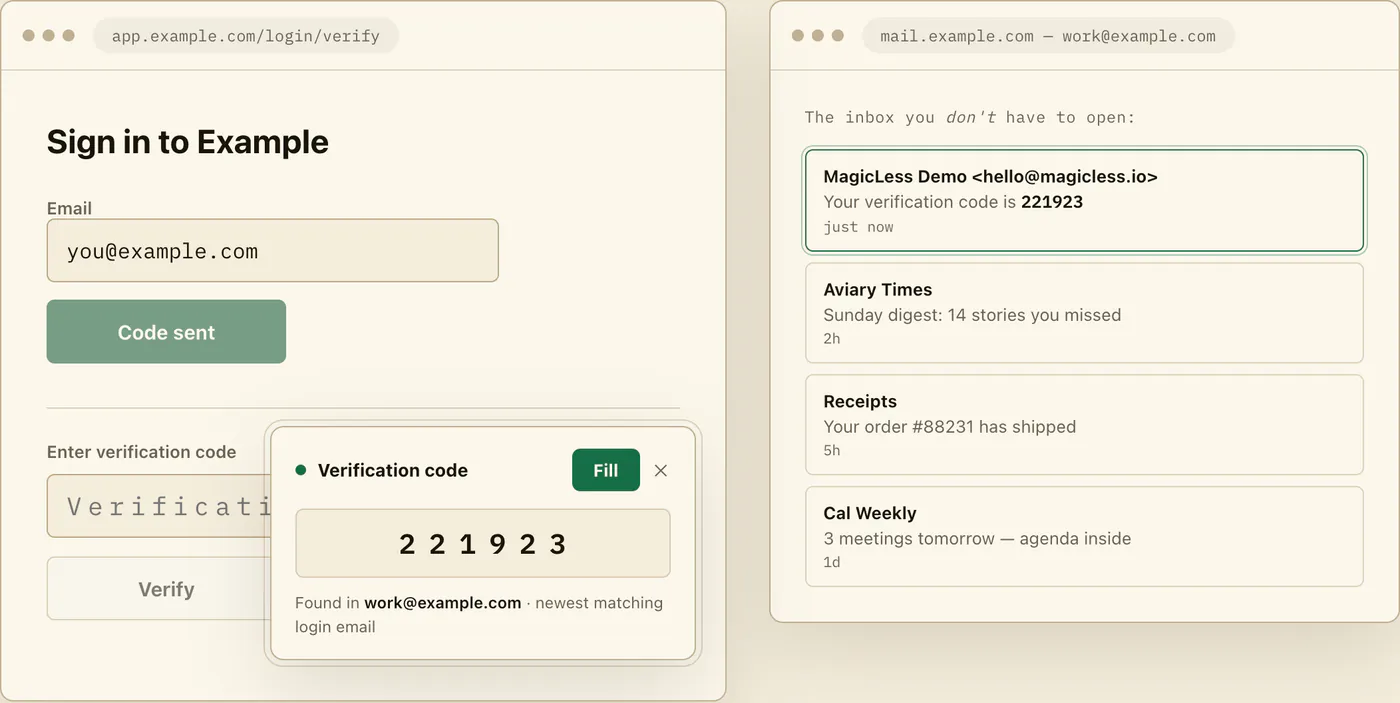
What it will not do: it runs in desktop Chrome with Gmail only — it cannot put codes on your phone or work in other browsers or mail providers — it reads only inboxes you explicitly connect, and it never fills the field until you click Fill and never submits the form for you; the final Verify click stays yours.
FAQ
Can I get a verification code on my computer if the notification came to my phone?
Yes — the code is in your Gmail account, not in the phone. Sign into the same Gmail in a laptop browser tab and the identical message is there to copy from.
What is the quickest way to find the code once Gmail is open on the laptop?
Search rather than scroll: newer_than:1h (code OR verification) surfaces the freshest candidates, and from: plus the service name pins the exact sender. Always take the newest match.
Is it OK to text or email a code to myself to get it onto the other machine?
No. It leaves a durable copy of a live credential in another service and normalizes sharing codes through chat, which is the pattern code-relay scams depend on. Open Gmail on the target machine instead.
Why does the code from my phone's lock screen keep getting rejected?
The lock screen often shows an earlier notification while a newer code sits in the inbox, and small-type retyping invites digit swaps. Both problems vanish when you copy the newest message on the laptop.
Do I need a separate Chrome profile for each Google account?
Only if you juggle multiple accounts. Chrome profiles keep each account's sign-ins and tabs separate, so the window you are in always opens the matching inbox — worth it for anyone living in two identities.
Claim ledger
| Claim | Source | Last checked | Confidence |
|---|---|---|---|
Gmail search operators such as from: and newer_than: narrow a mailbox to recent matching messages. | Google Gmail search help | 2026-09-13 | High |
| Chrome supports multiple profiles that keep sign-ins, bookmarks, and settings separate per profile. | Google Chrome profiles help | 2026-09-13 | High |
| CISA recommends enabling multifactor authentication because the second factor protects accounts beyond the password. | CISA - Turn on MFA | 2026-09-13 | High |
| NIST treats one-time secrets as short-lived authenticators, which argues against copying them into persistent channels. | NIST SP 800-63B | 2026-09-13 | Medium |
| NIST SP 800-63B also says email SHALL NOT be used for out-of-band authentication (password-only access, interception, rerouting); codes that confirm an email address or recover an account are outside that rule. | NIST SP 800-63B | 2026-09-24 | High |
| Email is stored account-side, so any signed-in device shows the same code message. | Google Gmail search help | 2026-09-13 | Medium |
Sources
- Google Gmail Help - Refine searches in Gmail: https://support.google.com/mail/answer/7190?hl=en
- Google Chrome Help - Manage Chrome with multiple profiles: https://support.google.com/chrome/answer/2364824?hl=en
- CISA - Turn on multifactor authentication: https://www.cisa.gov/secure-our-world/turn-mfa
- NIST SP 800-63B - Digital Identity Guidelines: Authentication: https://pages.nist.gov/800-63-4/sp800-63b.html