The code arrived, but the login rejects it
Closed the Login Tab While Hunting a Code? Escape the Loop
Keep one login tab alive, fetch the code beside it, and never re-request while an attempt is pending; that breaks the request-switch-expire cycle.
Escape the loop by changing one thing: keep a single login tab open from the moment you click "send code" until the moment you are signed in, and bring the inbox to a window beside it instead of navigating away. If the tab is already gone, press Ctrl+Shift+T (Cmd+Shift+T on a Mac) to reopen it; if the restored page still shows the code field waiting, enter the newest code once. If the page reloaded to the start of the flow, the old attempt is dead, so ignore every code already in your inbox, restart the flow once, and stay put this time. Requesting another code while a previous attempt might still be live is what keeps the cycle spinning.
Why the trip to Gmail keeps killing the attempt
The loop feels mysterious because the code looks like a free-floating password, but on many services it is not. A verification code is often tied to the specific login attempt that generated it, some implementations bind it to a page session, a hidden token, or a single pending challenge, and providers differ, so treat this as a common pattern rather than a universal rule. OWASP's authentication guidance describes one-time codes as short-lived, single-use secrets attached to an authentication flow, and NIST's guidelines similarly treat OTPs as time-boxed authenticators, not reusable keys.
Practical consequences of that binding:
- Closing the login tab can discard the pending attempt, so the code in your inbox verifies an attempt that no longer exists.
- On phones, switching to the mail app can reload the login page when you return, with the same effect.
- Clicking "resend" may start a fresh attempt; depending on the provider, that can orphan the previous code even though it just arrived.
- Each cycle of switch, lose state, re-request manufactures a new stale code, which is why the inbox fills with codes that are each invalid by the time you type them.
You are not unlucky. The workflow itself, leaving the page to find the code, is generating the failures.
The three loop-breaker rules
- One login tab. Open the flow once and never navigate that tab anywhere else. If you catch yourself typing "gmail" into the login tab's address bar, stop; that navigation is the loop.
- One inbox surface. Pick a single place to read the code, a second browser window, an already-open Gmail tab, and use only it. Watching phone, watch, and desktop notifications at once is how the wrong or older code gets grabbed.
- No re-request until the attempt is provably dead. "Dead" means the login page itself says expired, invalid, or start over. A slow email is not a dead attempt; sixty extra seconds of waiting beats resetting the flow. If codes fail for reasons you cannot see, run the stale-code check before you retry instead of mashing resend.
Can the closed tab be rescued?
Reopening the tab is worth ten seconds before you restart anything:
| After Ctrl/Cmd+Shift+T, you see | Verdict | Do this |
|---|---|---|
| The code-entry field, still waiting | Attempt likely alive | Enter the newest code from the current sender, once |
| The flow's first screen (enter email again) | Attempt reset | Restart deliberately; treat all existing codes as dead |
| "Session expired" or an error page | Attempt dead | Restart the flow once, side by side with your inbox |
| A generic homepage after sign-out | Attempt dead, state cleared | Restart, and check you are in the intended browser profile |
Two caveats. First, a restored tab restores the page, not necessarily the server's memory of your attempt; a revived code field can still reject a valid-looking code, in which case you have your answer and restart once. Second, browser data hygiene matters here: per Chrome's cookie documentation, wiping a site's cookies signs you out and clears its stored state, so a mid-flow cleanup or an aggressive privacy extension can be the invisible reason attempts never survive. Magic links share this fragility, and the recovery logic differs slightly; see what to do before requesting another magic link.
Set up the screen so switching is impossible
The durable fix is spatial. Put the login window on the left half of the screen and a Gmail window on the right (drag the tab out of the strip to make it a window, then snap each to a screen edge). Now the code hunt happens in your peripheral vision while the login tab never loses focus, never reloads, never gets closed by reflex. In the Gmail window, skip inbox scrolling and search directly, newer_than:1h "code", or from: the expected sender, so the newest message is unambiguous. On a phone, the equivalent discipline is copying the code straight from the mail notification and returning with the back gesture, keeping the browser backgrounded as briefly as possible.
Fill everything else first, request the code last
A subtler loop-starter: people click "send code" as step one, then spend the code's short lifetime typing their email and fixing a typo. Invert it. Complete every other field, get the form one keystroke from done, and only then request the code, so its entire validity window is spent waiting for one paste. Pair it with a timestamp glance: confirm the email's received time is after your most recent request, so you never type the previous cycle's code.
After two failed cycles, stop looping
If you have restarted cleanly twice and the service still rejects codes, the problem is no longer your tab discipline. OWASP's guidance expects services to throttle repeated authentication attempts, so cycle three is where you stop and switch to the provider's recovery path: recovery link, support contact, or an alternate sign-in method you registered earlier. Two clean failures is data; ten is a lockout.
The loop-breaker checklist
Run this top to bottom in one pass:
- Reopen the closed tab with Ctrl/Cmd+Shift+T and read what state it is in.
- If the code field survived: newest code, entered once.
- If not: arrange login window and Gmail window side by side before restarting.
- Fill every form field except the code, then request.
- Search
newer_than:1hin Gmail instead of scrolling. - Verify the email's timestamp is after your latest request.
- Paste the code; do not retype from memory.
- No resend unless the page itself declares the attempt dead.
- Two clean failures: stop and use account recovery.
Remove the trip that breaks the attempt
Every rule above exists to compensate for one structural flaw: the code arrives in a different place than the page that needs it, and the journey between the two places is what destroys the attempt. Discipline shrinks the journey; it cannot delete it.
MagicLess deletes it. It is a free Chrome extension that connects to your Gmail and surfaces the arriving verification code directly on the open login page, so there is no second window, no search, and, critically for this scenario, no navigation away from the tab holding your live attempt. MagicLess ends the tab shuffle: the login page stays open, the code comes to you, and nothing expires while you hunt. It is free on the Chrome Web Store.
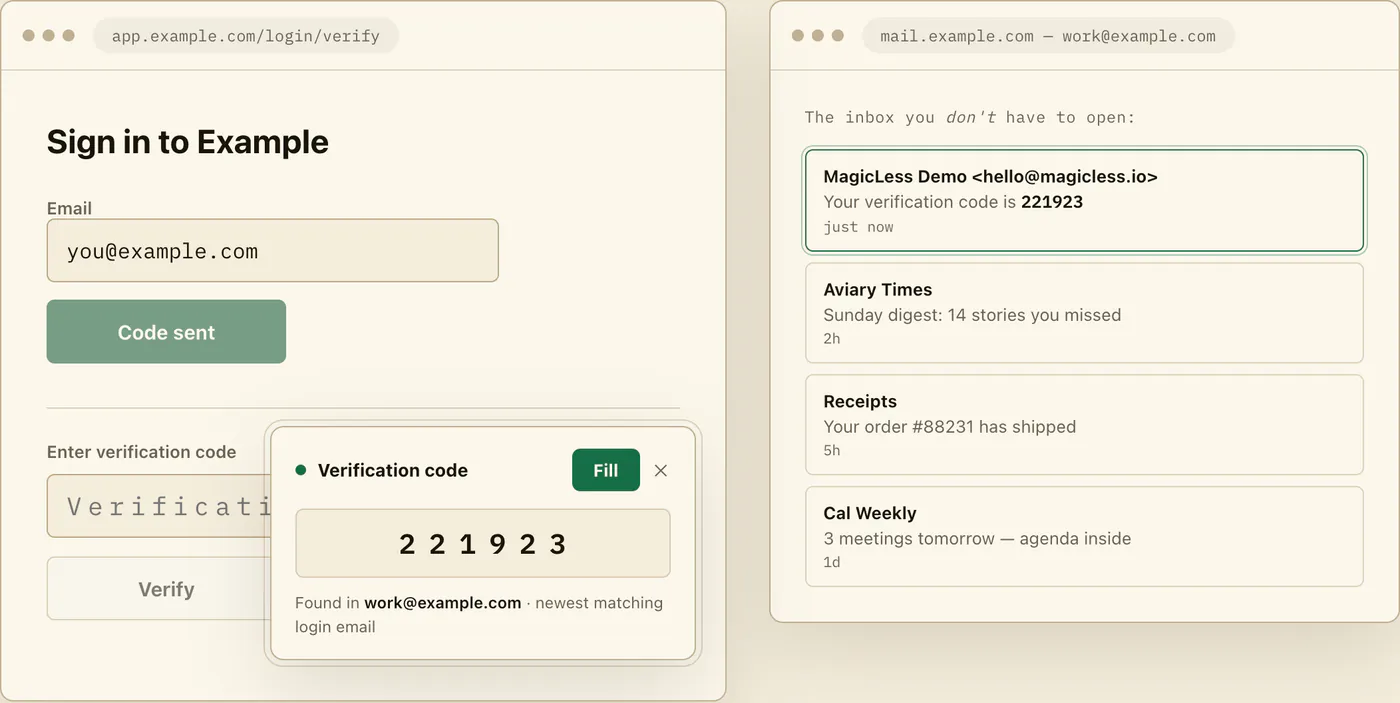
To be precise about limits: MagicLess cannot revive an attempt you already killed or stretch a provider's expiry window, it only prevents the tab-leaving that kills attempts in the first place; it works with Chrome and the Gmail accounts you connect; and it never presses submit for you. This guide's companion on avoiding stale-code chases covers what to do when expiry, not tab loss, is the enemy.
FAQ
Does closing the login tab always invalidate the code?
No, it depends on the provider. Some flows keep the attempt alive server-side and accept the code on a reopened page; others bind the code to page state that dies with the tab. The reopen test in this guide tells you which kind you are facing in ten seconds.
Which code do I use after three resends?
The one whose email timestamp is newest and later than your latest request, entered into the current attempt. Every earlier code should be treated as dead, even if its email is still bold and unread at the top of the inbox.
Why does this happen constantly on my phone but rarely on my laptop?
Mobile browsers aggressively reload background pages to save memory, so switching to the mail app and back often resets the login page. The notification-copy-back-gesture route keeps the page backgrounded for the shortest possible time.
Is it safer to just wait longer before requesting a new code?
Usually yes. A pending email plus a fresh request leaves two candidate codes for one live attempt. Wait until the page declares the current request expired, then restart once, cleanly.
Claim ledger
| Claim | Source | Last checked | Confidence |
|---|---|---|---|
| One-time codes are short-lived, single-use secrets attached to an authentication flow rather than reusable passwords | OWASP Authentication Cheat Sheet | 2026-09-13 | High |
| OTPs are time-boxed authenticators whose validation rules are set by the verifier, so expiry and reuse behavior varies by provider | NIST SP 800-63B | 2026-09-13 | High |
| NIST SP 800-63B also says email SHALL NOT be used for out-of-band authentication (password-only access, interception, rerouting); codes that confirm an email address or recover an account are outside that rule. | NIST SP 800-63B | 2026-09-24 | High |
| Services are expected to throttle or limit repeated failed authentication attempts, so resend-hammering risks lockout | OWASP Authentication Cheat Sheet | 2026-09-13 | Medium |
Gmail's newer_than: and from: operators narrow results to the most recent messages from a sender | Refine searches in Gmail | 2026-09-13 | High |
| Clearing a site's cookies in Chrome signs you out and removes its stored data, which can reset in-progress login state | Delete, allow, and manage cookies in Chrome | 2026-09-13 | High |
Sources
- NIST SP 800-63B - Digital Identity Guidelines: Authentication: https://pages.nist.gov/800-63-4/sp800-63b.html
- OWASP Cheat Sheet Series - Authentication: https://cheatsheetseries.owasp.org/cheatsheets/Authentication_Cheat_Sheet.html
- Google Gmail Help - Refine searches in Gmail: https://support.google.com/mail/answer/7190?hl=en
- Google Chrome Help - Delete, allow, and manage cookies in Chrome: https://support.google.com/chrome/answer/95647?hl=en